This guide explains how to provision and de-provision a Cloudbooking Check-In device using the Cloudbooking Check-In app. It is written for device administrators and support teams who need a clear, repeatable process.
Quick Content Links
Before you begin
Choose the right provisioning method
Download the apps
Remote provisioning
Direct provisioning
De-Provisioning a device
Troubleshooting
Frequently asked questions
📋 Before you begin
- Ensure you have an internet connection.
- You need a Device Administrator account to provision or de-provision devices.
- The target device must have the relevant app installed and remain powered on during provisioning.
- Provisioning can be completed in two ways: remote provisioning or direct provisioning.
📌Important: If you If you’re unable to login and view devices, your account does not have the required administrator permissions. Contact the Cloudbooking support team for assistance.
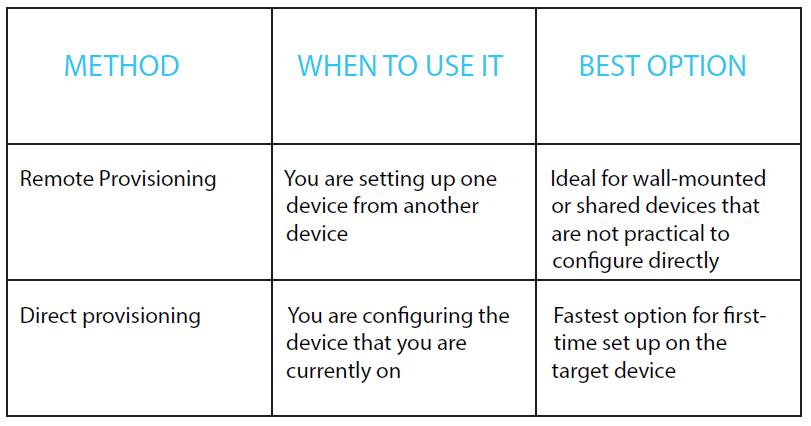
🧭 Choose the right provisioning method
⬇️ Download the apps
Cloudbooking Check-In App for iOS:
htps://apps.apple.com/gb/app/cloudbooking-check-in/id6779280570
Cloudbooking Check-In App for Android:
htps://play.google.com/store/apps/details?id=com.cloudbooking.cb.checkin&hl=en_GB
📌Tip – You can install the app on a mobile or a tablet – check in functionality is designed for tablets but provisioning can be carried out either on mobile or on a tablet.
The app is currently compatible with Android 11 upwards and iOS 16 upwards – subject to change.
If you need further assistance, please email hello@cloudbooking.com
☁️ Remote provisioning
Use this method when the device being provisioned is different from the device being used by the administrator.
On the device being provisioned
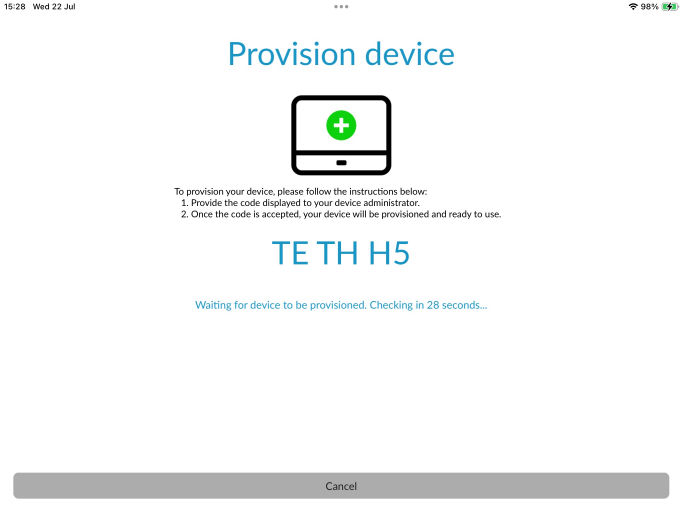
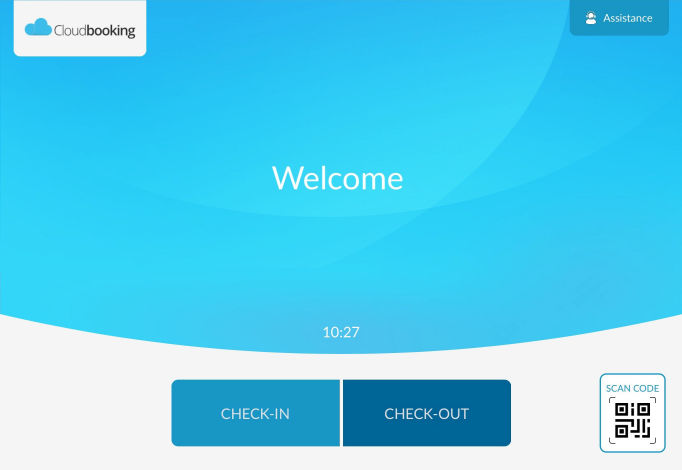
Open the Cloudbooking Check-In App.
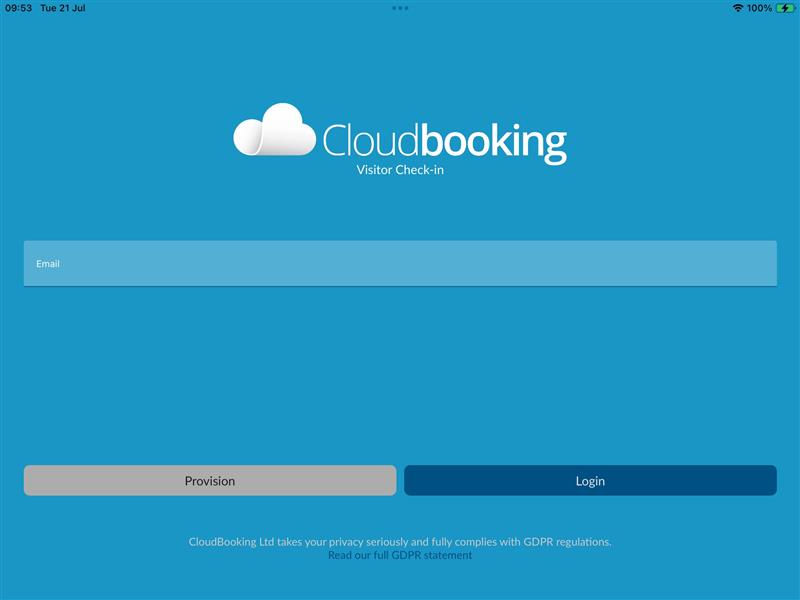
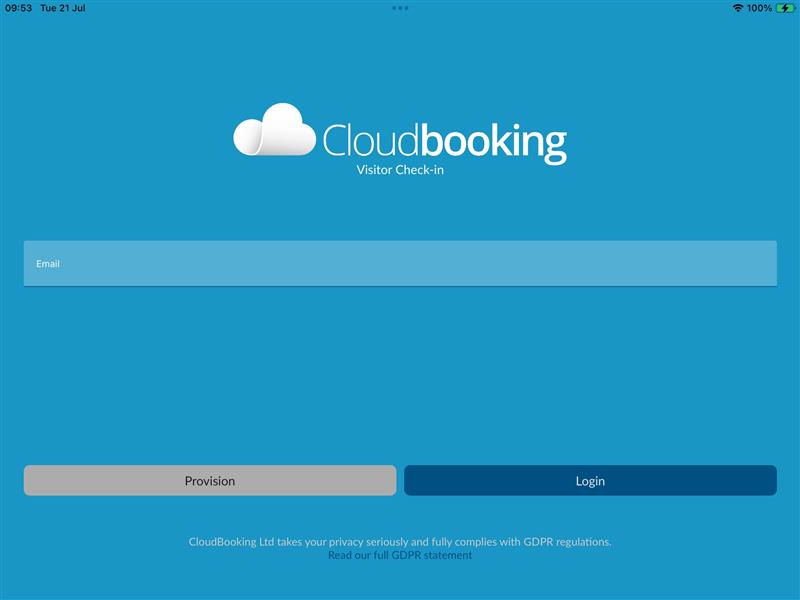
Select Provision.
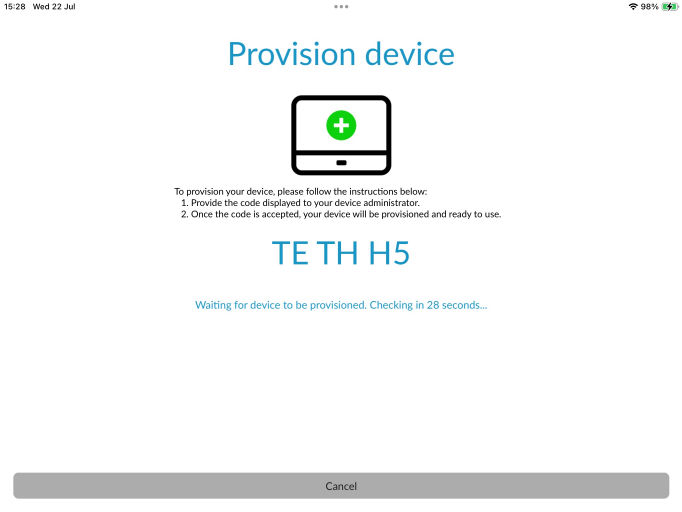
Note the unique 6-character provisioning code shown on screen. You will need to provide this code to your device administrator to enable them to provision the device remotely.
If you are the administrator provisioning the device remotely, please see the next section.
‘Administrator Action – Complete remote provisioning via the Cloudbooking Check-In App’
Administrator action – Complete remote provisioning via the Cloudbooking Check-In App
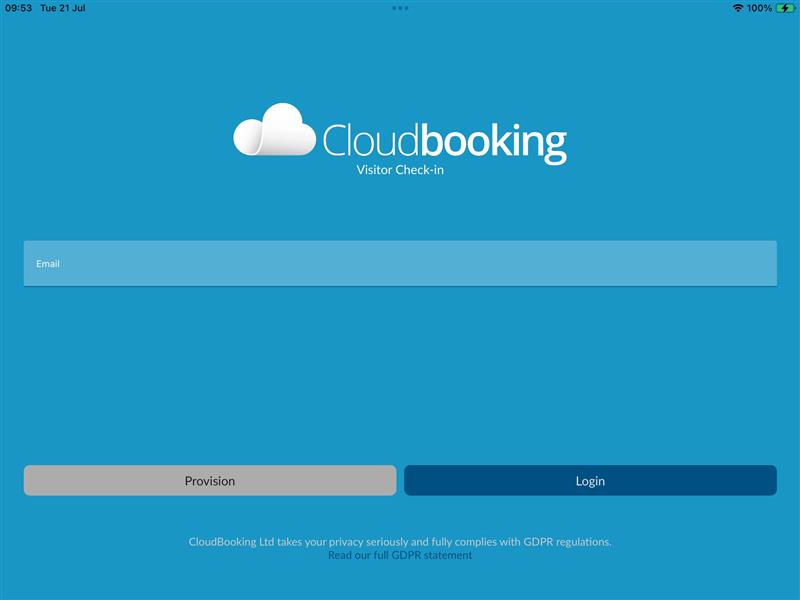
On a separate device, sign in to the Cloudbooking Check-In app using your Device Administrator credentials.
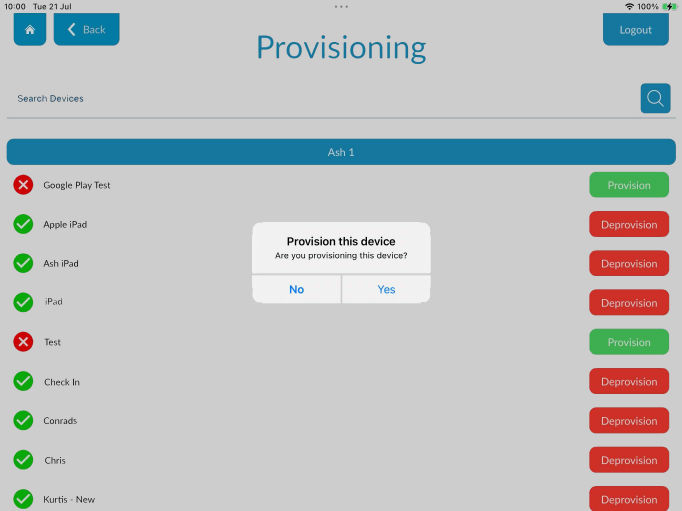
Locate the device record you want to provision and select Provision.
When asked “Are you provisioning this device?”, select No.
Why select “No”? You are not provisioning the device in your hand. You are sending provisioning details to a different device that is waiting for the code.
Enter the 6-character provisioning code from the target device.
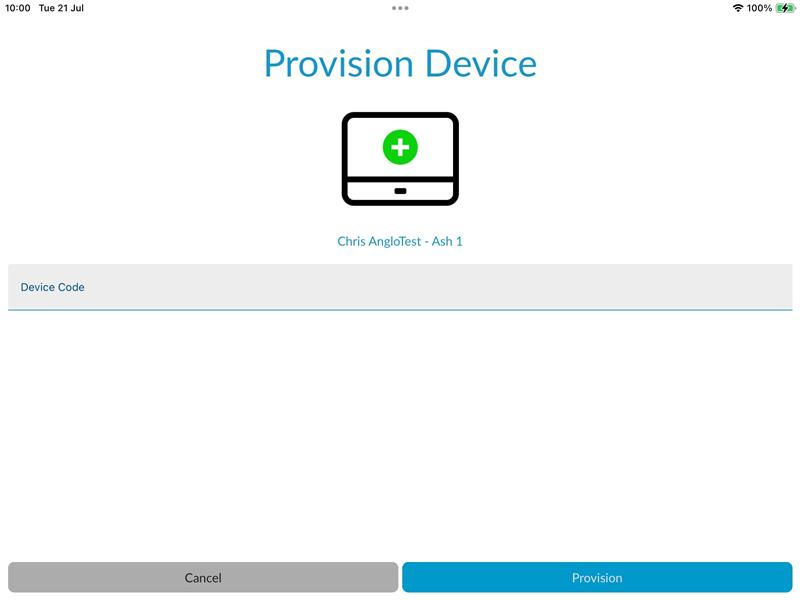
Complete the process.
The device will check periodically for provisioning updates. Once provisioning completes, it will sign in automatically and be ready to use.
💻 Direct provisioning
Use this method when you are provisioning the same device you are currently using.
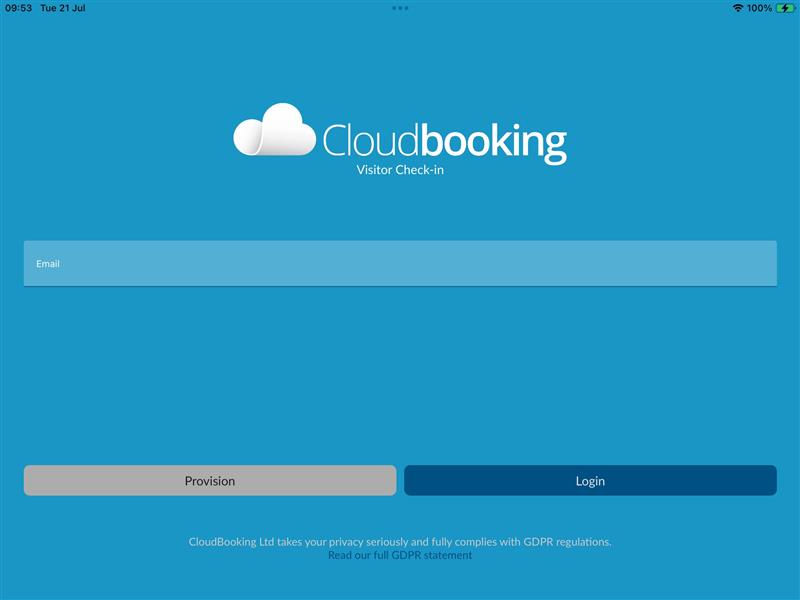
Open the Cloudbooking Check-In app on the target device.
Sign in using your Device Administrator credentials.
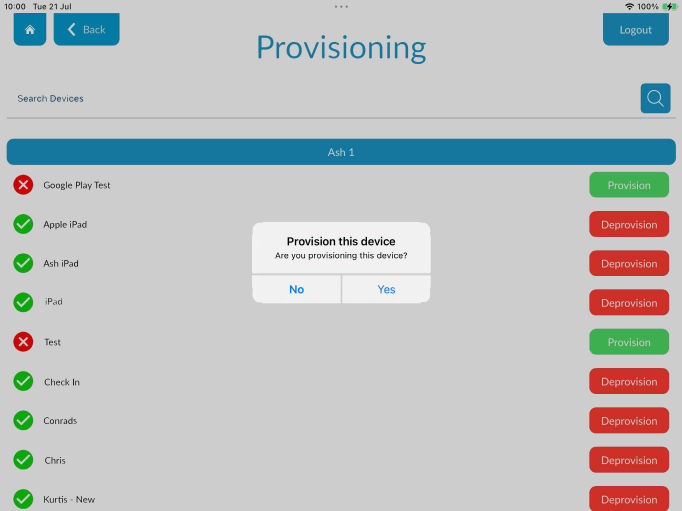
Locate the device record you want to provision and select Provision.
When asked “Are you provisioning this device?”, select Yes.
Allow the process to complete. The device will be provisioned automatically and signed in.
🔄 De-Provisioning a device
De-provisioning releases the licence so it can be used on another device.
Sign in to the Cloudbooking Check-In app using Device Administrator credentials.
Locate the device you want to remove and select De-provision.
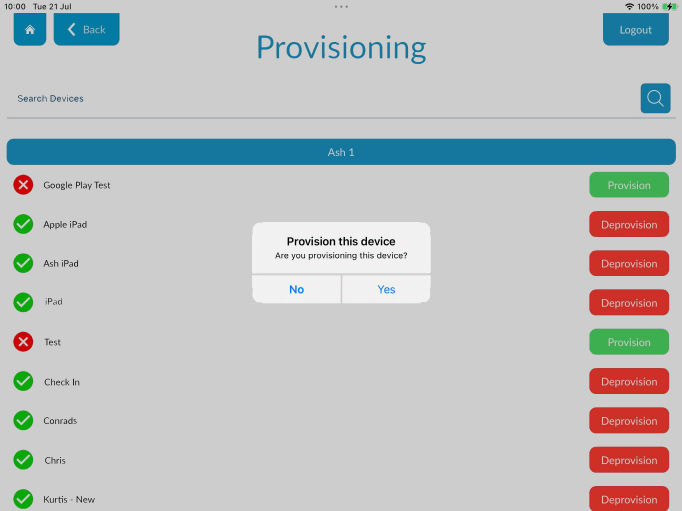
When prompted “Are you de-provisioning this device?”, select Yes.
You will receive confirmation once the device has been de-provisioned.
🔧 Troubleshooting
Device Setup is missing: your account likely does not have the Device
Administrator role. Please contact Cloudbooking for device admin access.
Provisioning does not complete: confirm the target device is still on the
provisioning screen and connected to the internet.
Wrong method selected: choose No when provisioning a different device, and
Yes when provisioning the device in your hand.
No available licence: check whether an existing device needs to be
de-provisioned first.
❓Frequently asked questions
Can I still use the mobile app to remotely provision devices?
Yes. The existing CBMobile app can still be used to remotely provision devices.
Can I use the Check-In app on my mobile device to provision other devices?
Yes. The Check-In app can be used on a mobile device to provision other devices.
Can I provision older Check-In app versions using the new Check-In app,
and vice versa?
Yes. The new Check-In app is backward compatible. The new app can provision
both new and older versions, and the existing mobile app can also provision both
new and older versions. There is no requirement to upgrade all devices before
using the new app.
What does backward compatibility mean in practice?
It means provisioning can continue across both old and new Check-In app
versions, which helps support a smoother rollout and reduces the need for a
simultaneous upgrade.